//
Sep 28, 2026
[
]
Avoiding Duplicate Dental Reminders When Appointments Are Split

A patient has one visit, but your schedule contains two appointment entries. The first covers an initial part of the visit; the second reserves time with another provider. If a reminder system treats both entries as separate visits, the patient may receive two different arrival times.
The right fix depends on how your practice management system, scheduling tools, and reminder service interpret those entries. Before changing a setting, identify which record should supply the patient-facing arrival time and which system is responsible for sending each message.
The goal is specific: keep all the required time reserved while giving the patient clear, consistent instructions. Deleting the second appointment or turning off reminders for the entire patient can solve the wrong problem.
Separate the patient visit from the schedule entries
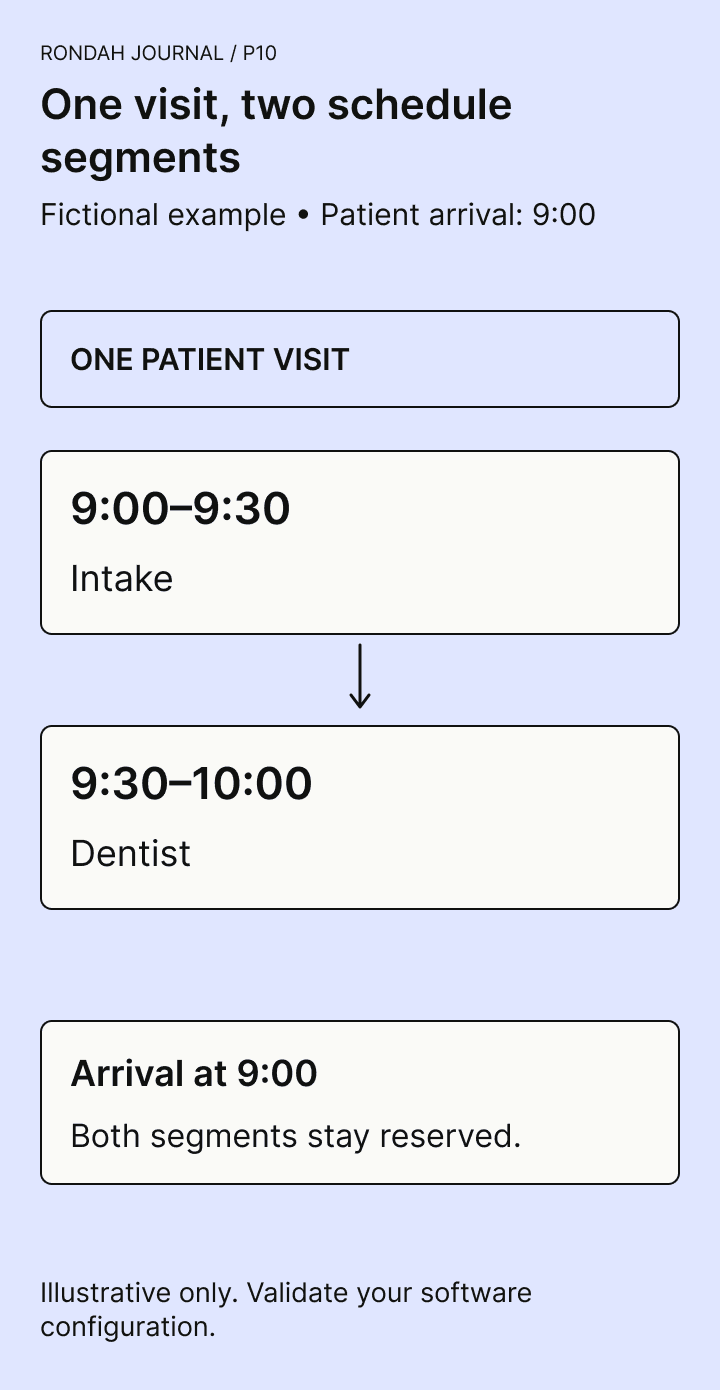
Consider a fictional new-patient visit lasting one hour. The practice reserves 9:00–9:30 in an intake column and 9:30–10:00 with the dentist. The patient should arrive at 9:00 and stay for both parts.
On the schedule, that could be represented by one appointment, two linked appointments, or an appointment plus a block. Those structures are not interchangeable. A scheduling integration may create a different record type from the one staff create manually, even when the calendar looks similar.
If both entries are eligible for reminders, the patient might receive “Your appointment is at 9:00” and “Your appointment is at 9:30.” That does not necessarily mean a message was sent twice by mistake. Each message may have been triggered by a different record.
Start by looking at the underlying entries and the message log, rather than assuming the reminder wording caused the problem.
Find out what is actually being duplicated
Collect a controlled example using a test patient and contact details owned by your team. Ask your vendors how to prevent the test from reaching real patients.
For each message, record the sending system, channel, scheduled send time, displayed appointment time, and appointment record that triggered it. Then identify which of these patterns you have:
One system is sending for both segments of the same visit.
Two different systems are sending the same kind of reminder.
A rescheduled appointment has left an outdated message or record behind.
Confirmation, reminder, and booking messages are all being interpreted as duplicates because their purpose is unclear.
Each pattern needs a different investigation. If your PMS and another service both send reminders, excluding the second appointment in only one of them may still leave overlapping messages. If a message refers to an old time, changing the wording will not resolve the underlying update problem.
Do not assume every reminder system treats multiple appointments the same way
Some systems already have rules for multiple appointments on one day. For example, Open Dental's automated messaging documentation says messages for a patient with multiple appointments that day list the first appointment. Its eConfirmation troubleshooting guidance also describes how a confirmation response applies to that day's appointments.
Those details are specific to that software and workflow. They do not establish what an external messaging service will send, whether two separate visits should be combined, or how your scheduling integration writes appointments. Ask each vendor to explain the behavior of the exact configuration your practice uses.
Also separate reminders from confirmations and immediate booking messages. Suppressing one category does not prove that the others follow the same rule.
Give each message a clear owner
For the fictional 9:00 visit, write the intended patient experience in plain language: “The patient receives the practice's planned messages using the 9:00 arrival time. Both segments remain reserved, and changes to the visit are reflected consistently.”
Then document which tool owns each step:
Booking: which system creates the first and second schedule entries?
Arrival time: which record provides the time shown to the patient?
Confirmation: which service requests and records the response?
Reminders: which service sends each planned reminder?
Changes: which system updates both entries when the visit moves or is canceled?
One owner per message purpose is a useful starting point, even when several tools participate in the workflow. Your practice may deliberately send more than one reminder at different intervals; that is different from sending contradictory times for one visit.
Ask vendors which configuration they support
There may be more than one way to represent the visit. Ask your PMS, scheduling provider, and reminder provider to review the options together.
One option may be a single appointment representation that reserves the necessary resources. Another may be two appointment records with an approved way to exclude the second segment from patient-facing messages. A practice may already use a block for part of the visit, but an integration may not be able to create or maintain that same structure.
Treat these as configuration questions, not instructions to change your system immediately. Before choosing an approach, confirm that it reserves both segments, supports reporting, and behaves correctly when a patient confirms, cancels, or reschedules.
Avoid using a status with an unrelated meaning merely because it suppresses messages. A workaround that makes an appointment appear completed, canceled, or otherwise misclassified can create a different operational problem. Have the responsible vendors confirm what the selected field or appointment type actually does.
Test the entire visit, including changes
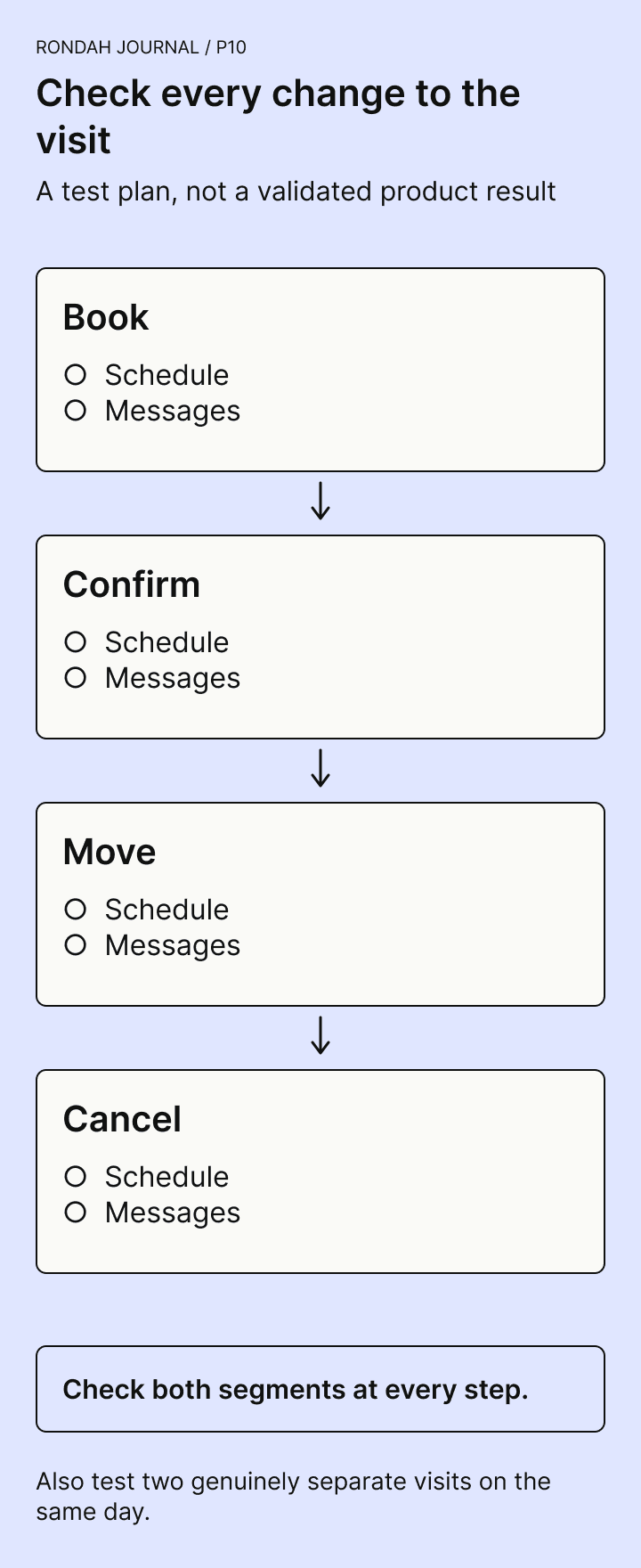
A booking that looks right on the calendar has passed only the first check. Run the following sequence in the vendor-approved test setup and inspect both the schedule and the resulting messages.
Create the split visit
Book the fictional 9:00 and 9:30 segments through the same route you plan to use in practice. Confirm that the correct patient, provider, duration, and resources appear in both records. Check that neither segment remains available for another booking.
Trigger the planned messages
Use the vendor's supported test or preview process. Check the actual recipient-facing content, arrival time, channel, and number of messages. A configuration screen alone is not proof of what the patient receives.
Confirm the visit
Submit a confirmation response from the test contact. Inspect which records change status and whether the front desk sees the visit as fully confirmed. The meaning of that response should match the practice's expectations for both segments.
Move the visit
Reschedule the complete visit to another eligible time. Check that both old segments are cleared or updated correctly, both new segments remain reserved, and subsequent messages use the new arrival time. Ask how the system handles messages that were already queued or sent.
Cancel the visit
Cancel through each supported route your patients or staff will use. Confirm what happens to both segments and any pending messages. A canceled first segment with a live second segment is still an unfinished workflow.
Test two genuinely separate visits
Create a different example in which the same patient really has two visits on one day. Confirm how the patient receives the information they need for both. A rule that works for one split visit should not silently hide a separate appointment.
Record expected behavior, actual behavior, and the person responsible for each correction. Retest after changes. Do not rely on a successful first booking as proof that the rescheduling and cancellation paths work.
Keep a fallback your front desk can operate
If the full workflow is not yet supported, agree on a temporary staff-managed process. For example, the scheduling tool may capture a request while a team member creates the split visit and checks the messages. Make the ownership and response expectations explicit.
Your morning callback checklist should identify those requests as unfinished work. Avoid telling a patient that an appointment is confirmed when someone still needs to construct and check the visit.
If you are considering Rondah for your practice, bring an example of your split appointment and the names of your PMS and reminder tools. Ask the implementation team to demonstrate the complete booking, reminder, change, and cancellation sequence before you enable that workflow.
Frequently asked questions
Does a split appointment always create duplicate reminders?
No. Behavior depends on the appointment records, reminder rules, and systems involved. Some software groups messages for multiple appointments. Other configurations need a specific exclusion or a different representation of the visit.
Should we delete the second appointment to stop its reminder?
Only change the schedule structure with your implementation team's guidance. The second entry may be reserving necessary provider or operatory time. The reminder fix must preserve those reservations.
Should we turn off all automated messages for that patient?
Do not use a patient-wide setting as the default fix for one split visit. It may also suppress useful messages for other appointments. Ask whether the supported solution can address the relevant appointment or message rule more precisely.






©2026 Sundown Technologies Inc.